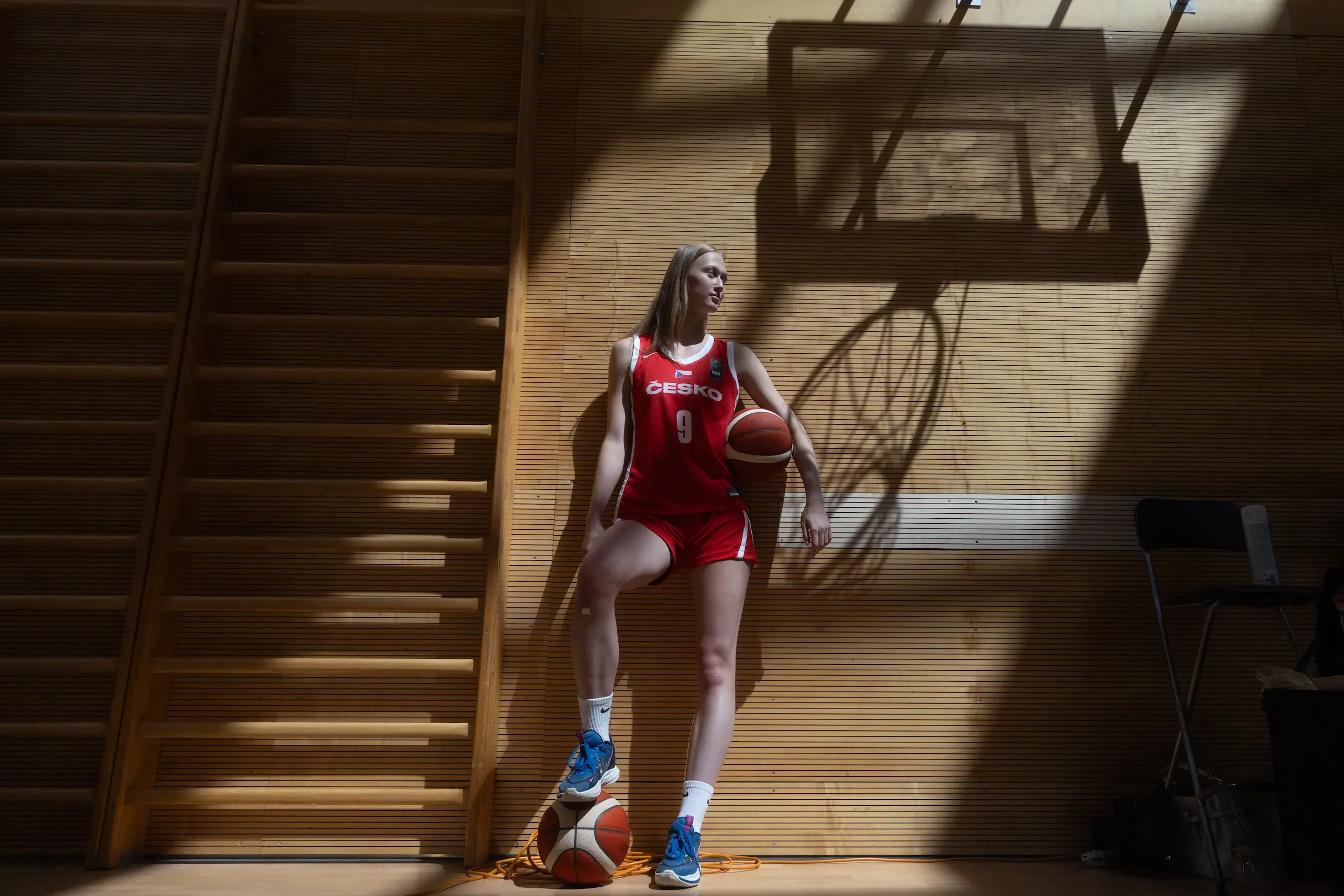
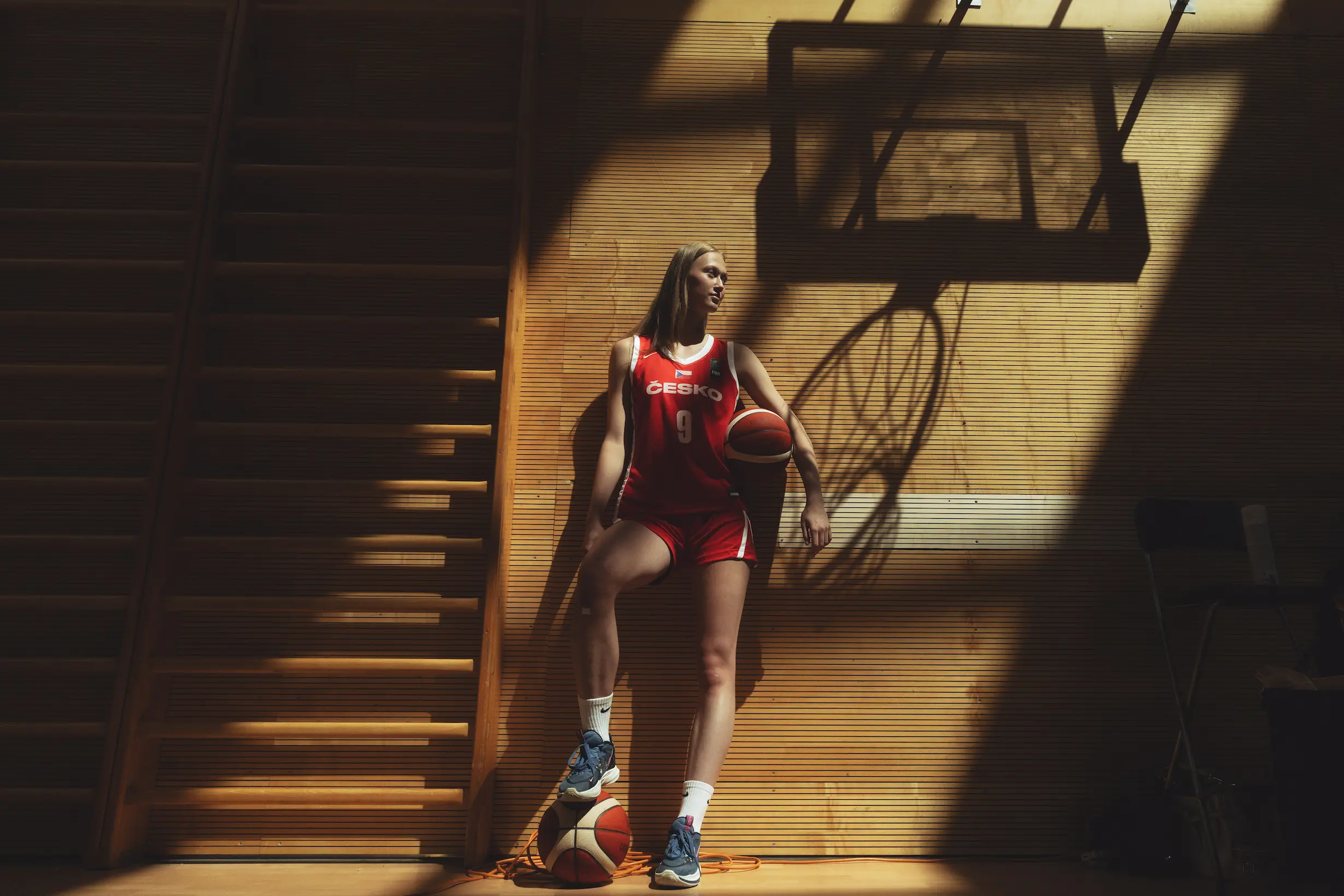
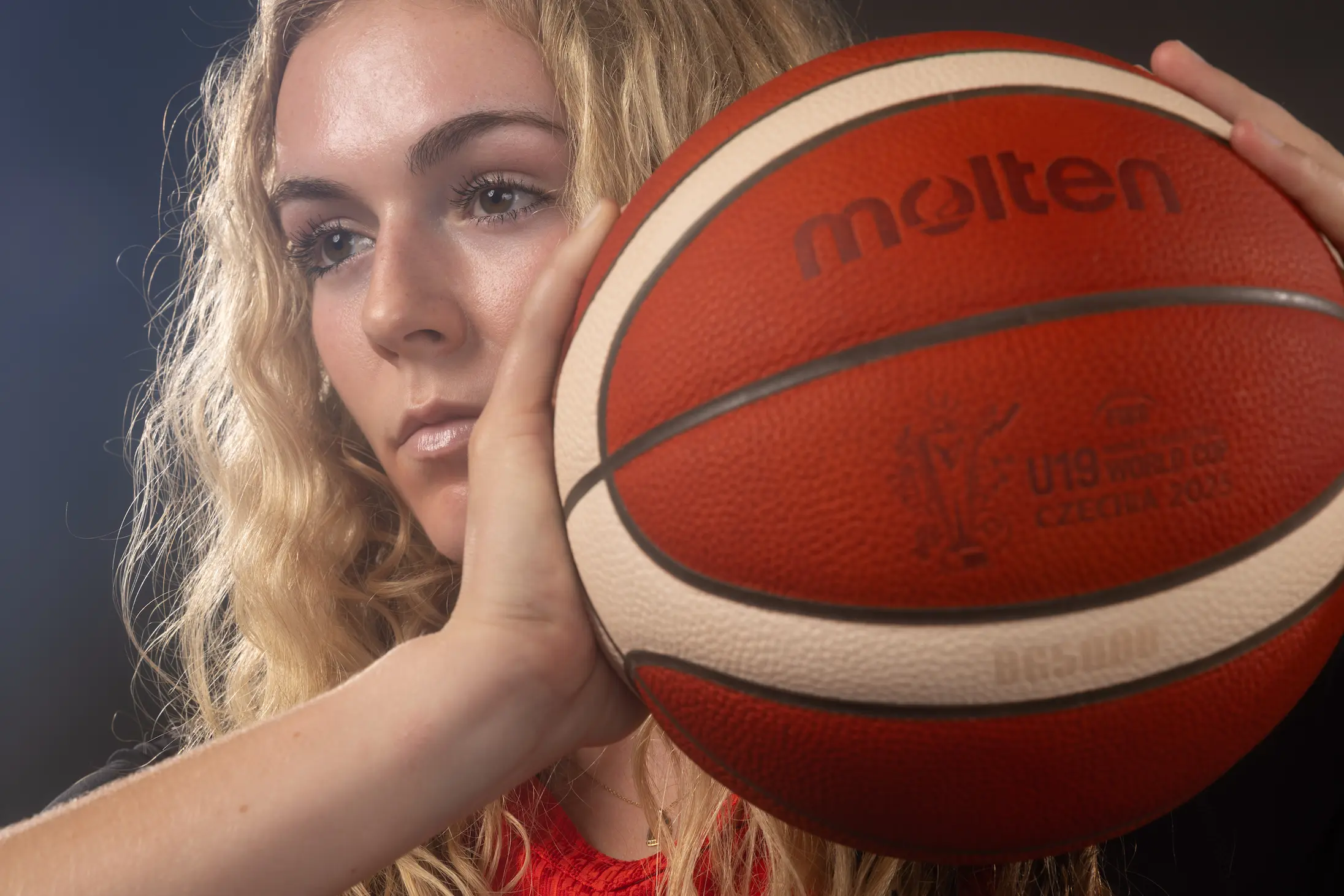
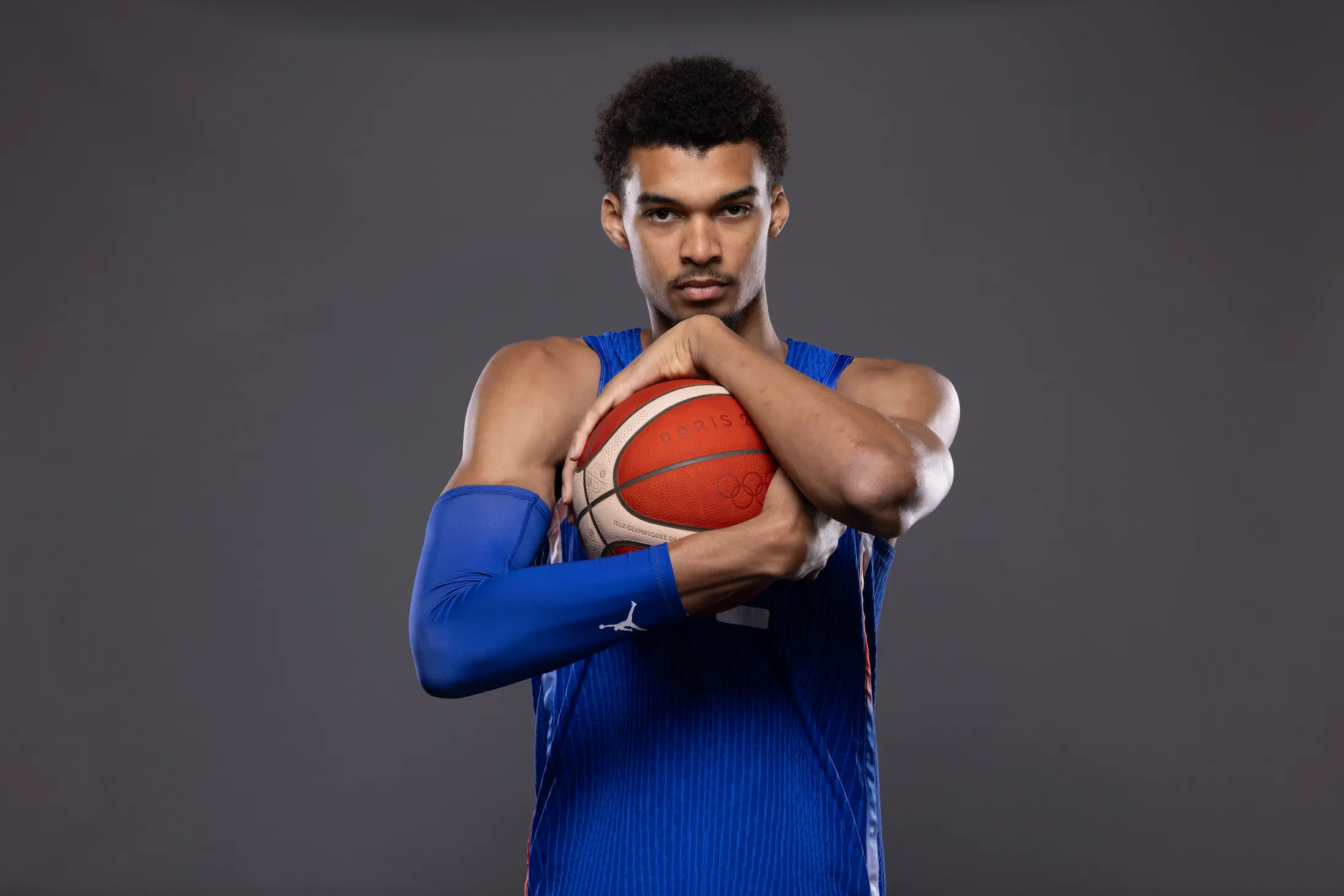
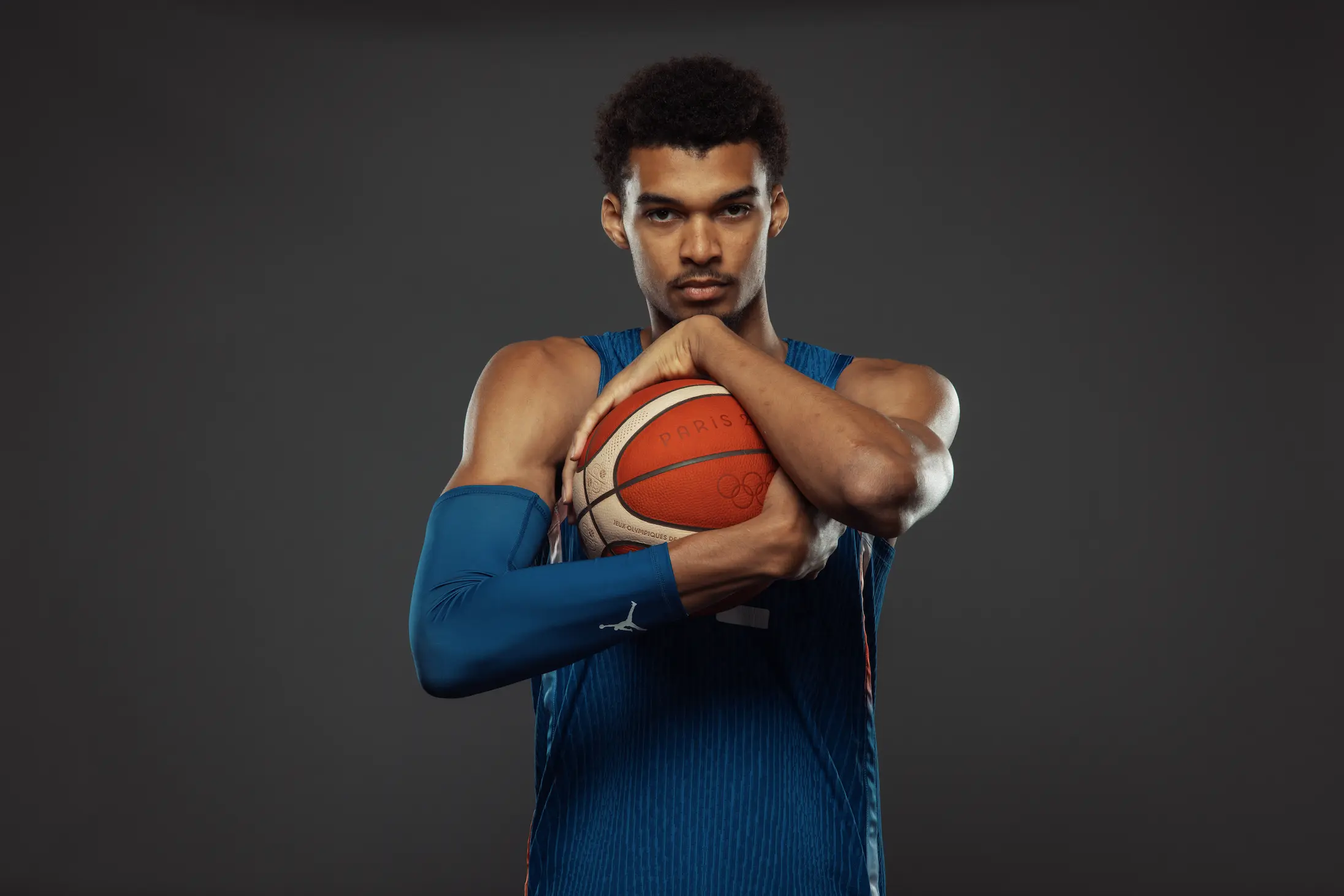
A cinematic blend of warm highlights and deep contrast, designed to capture drama in bold light. Perfect for indoor courts, creative portraits, and storytelling scenes where the shadows speak just as loud as the subject. With golden undertones and rich wood tones, it brings a nostalgic heat to any image.
Silent Anthem
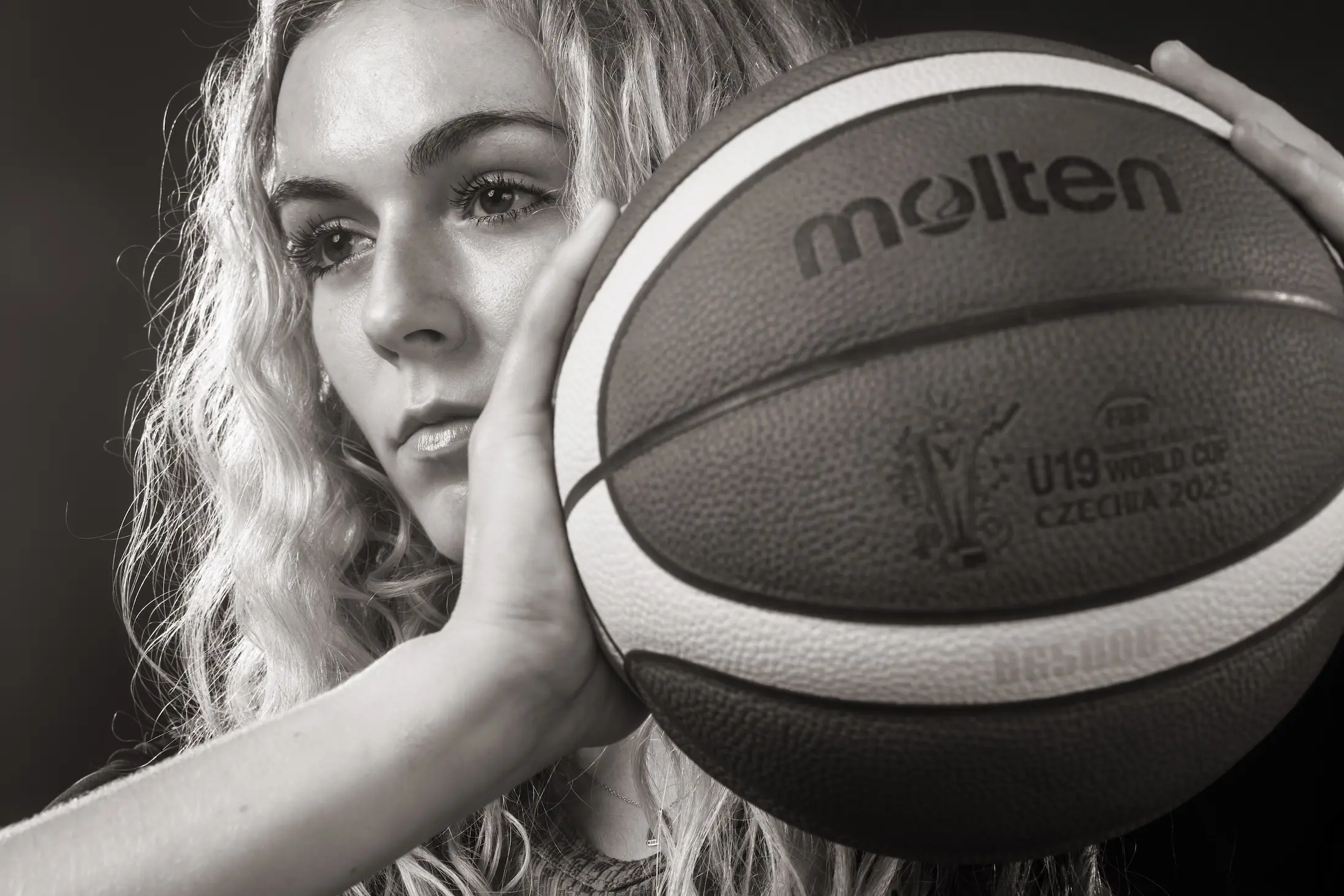
A soft, moody tone that quiets the noise and lifts the soul. Balanced coolness in the shadows meets a delicate clarity in the highlights, creating a calm yet powerful presence. Ideal for portraits, locker room moments, or anything that needs a whisper to feel loud.
Monochrome Whisper
A high-contrast black & white preset that melts light and shadow together. Perfect for emotional portraits and timeless storytelling. Every highlight feels intentional, and every shadow speaks. This is where silence becomes a statement.
Victory Cream
Elegant, creamy, and soft in all the right places. Skin tones glow, whites stay warm, and contrast is tender but confident. Think editorial with a dash of sports-classic. Ideal for fashion blends, victory portraits, and clean courtside moments.
Crimson Fade
A deep, cinematic red wash with gentle shadows and muted tones. This one is made for moments that simmer — not scream. Perfect for moody action, red backgrounds, or scenes where emotion pulses beneath the surface.
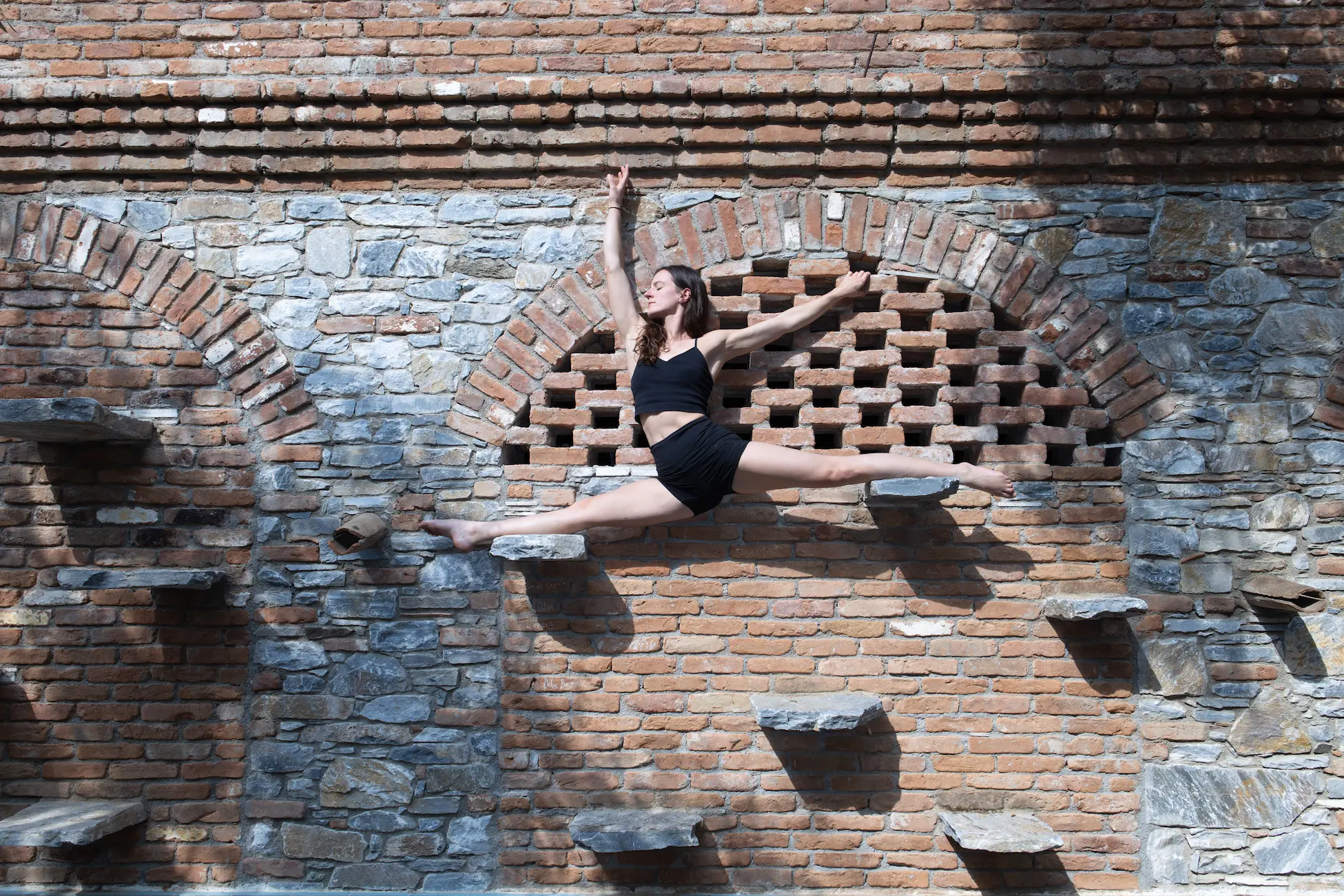
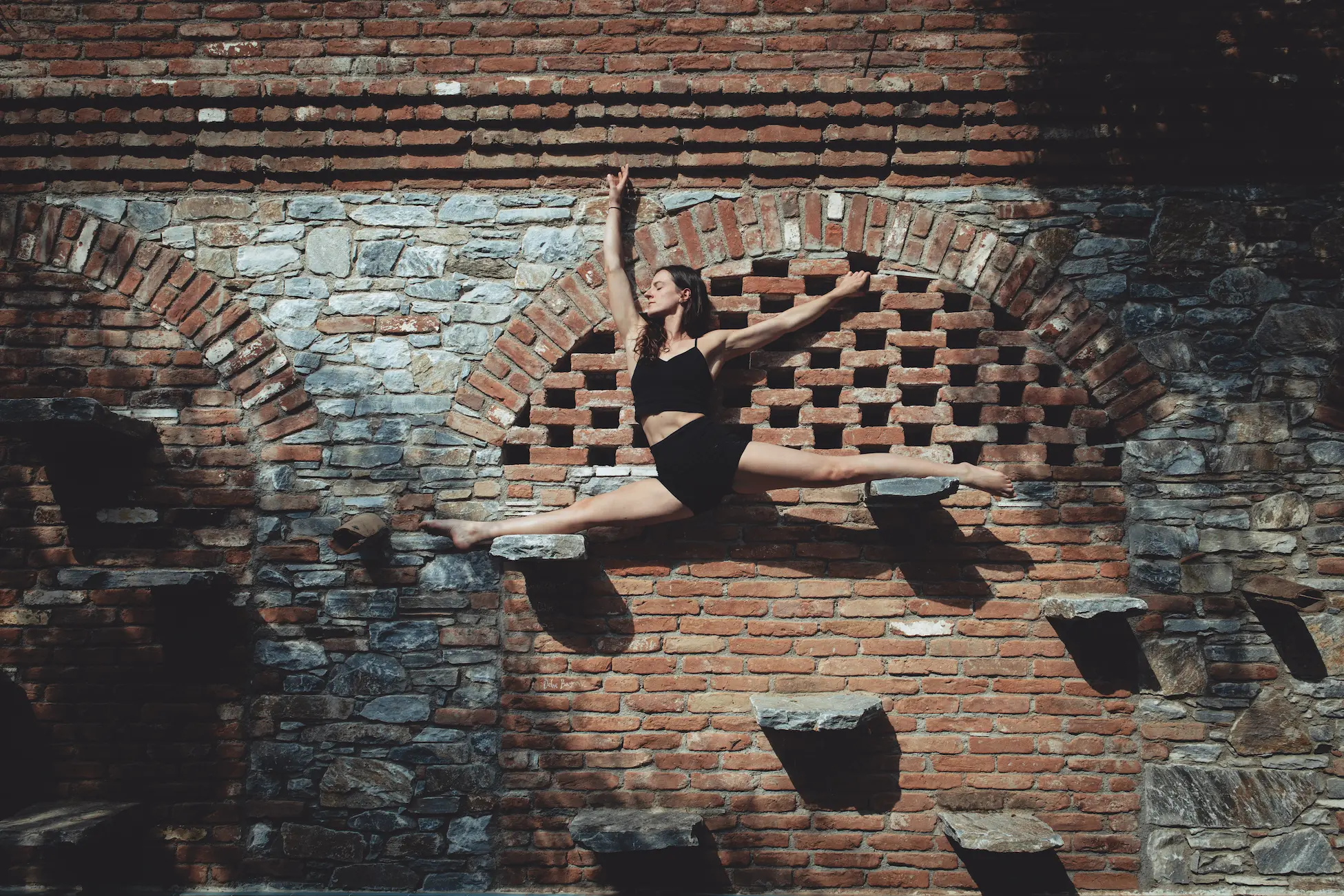
Suspended Grace
Where strength meets stillness midair. This preset captures the poetry of motion in calm tones and shadow-kissed highlights. Ideal for dance, portraits, or any scene where elegance defies gravity. Soft warmth blends with rich contrast to freeze fleeting beauty into timeless emotion.
Chalkstorm
When preparation becomes ritual and presence turns into power. This preset freezes the fire before the first move, capturing tension in the air and a sense of unstoppable momentum. Ideal for game openers, powerful athlete portraits, or moments when silence is louder than the crowd.
Titan Hold
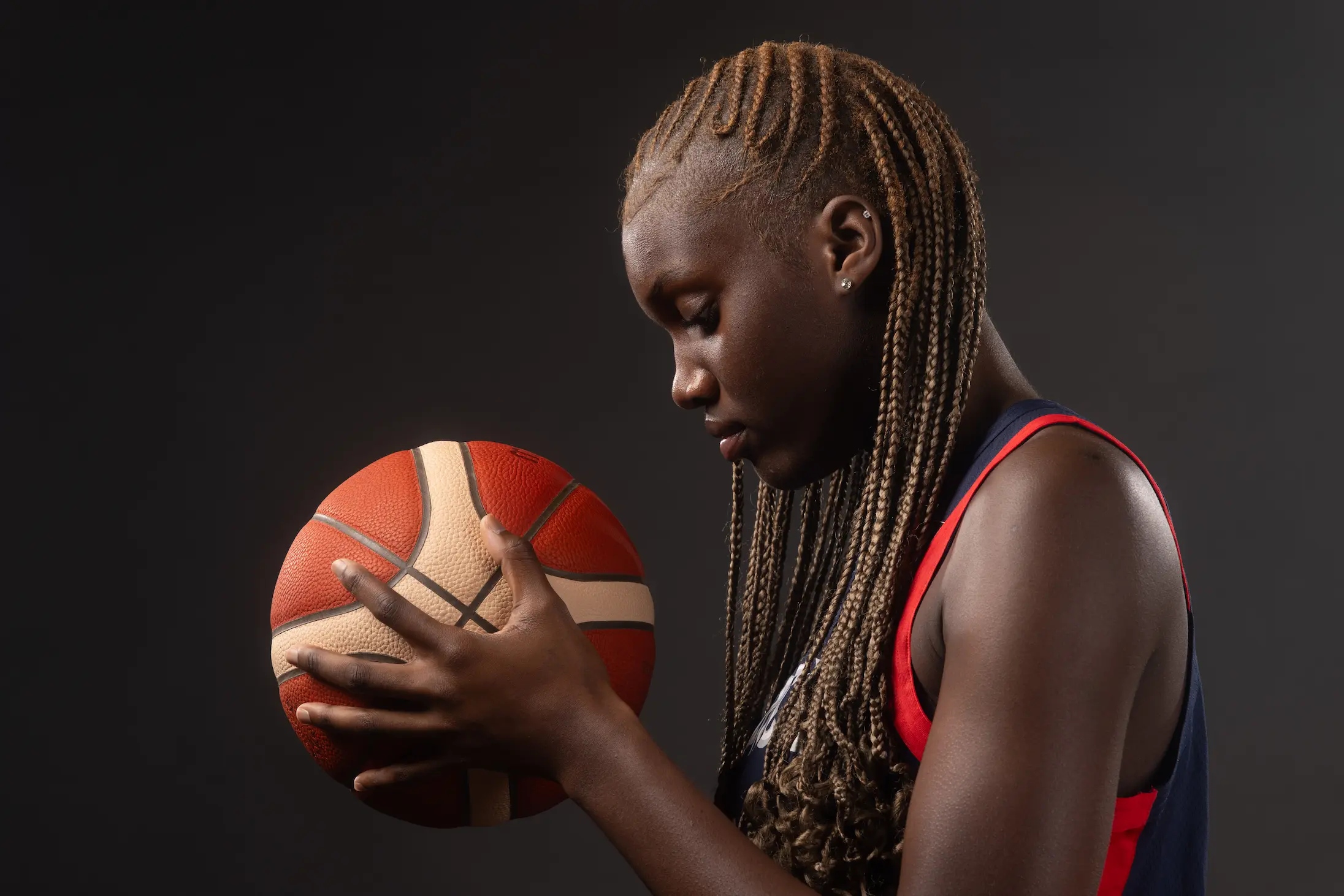
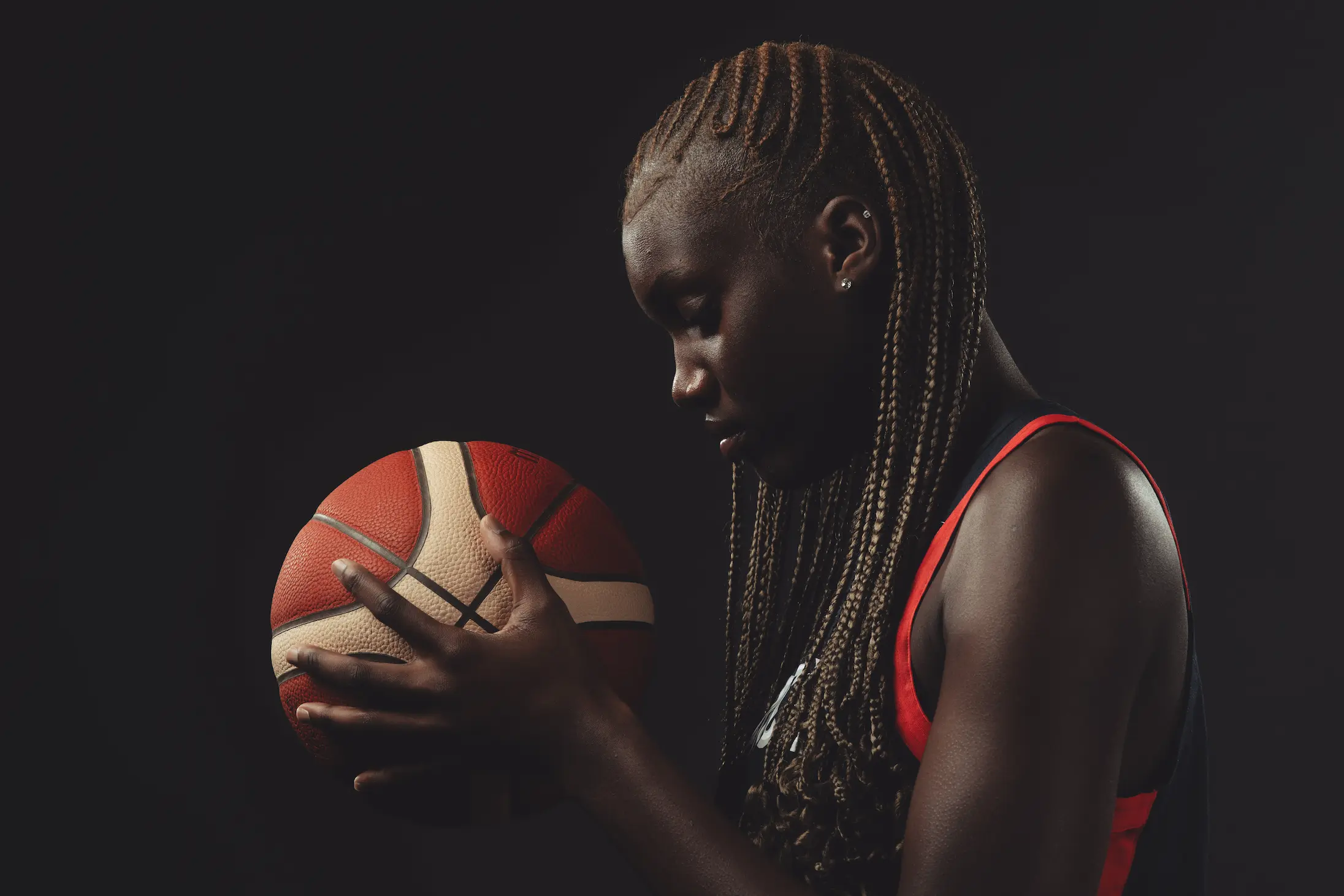
The grip of greatness, the calm before the roar. This preset adds depth to portraits that demand presence—where every shadow defines strength and every highlight whispers legacy. Perfect for studio shoots, athlete profiles, or moments where silence says it all.
Frequently Asked Questions
Q: What if I want to adjust the intensity of a preset?
A: In the top left-hand corner of the Develop module, there is a new “Amount” slider that you can slide to adjust the overall intensity of the preset. You can also go in and adjust each individual slider on the right-hand of the screen. This option is recommended for advanced users.
Q: Can I combine Adaptive Presets with standard presets?
A: Yes, you can apply a standard preset and then apply the Adaptive preset on top of it. It’s recommended to apply the standard preset first, and not the other way around.
Q: How do I adjust Adaptive Presets?
A: There are two ways to adjust the Adaptive Presets: You can either use the slider in the top left-hand corner of the Develop module to adjust the overall intensity of the preset, or you can adjust the individual masks by selecting the masking option (circle) at the top of the Basic adjustment panel on the right-hand side. Here you can turn off and on and tweak each individual mask.
Q: Will these presets work in Capture One?
A: No, these presets are specifically designed to only work in the Adobe suite of photo applications including Lightroom Classic, Lightroom, Photoshop and Adobe Camera Raw.
Q: I bought the preset pack but don’t see an email to download.
A: Please check the spam or promotion folder of your inbox. Allow 1-3 minutes for digital delivery.
Q: How do I install the presets into Lightroom?
A: The latest update to Lightroom Classic and Lightroom CC made it very easy to install presets. Click the “+” button that’s next to the presets folder in Lightroom. Next, find the zip file that includes the presets either on your desktop or in your “Downloads” folder and select it. Once installed, head on over to the “Develop” module and simply click the preset you would like to apply to your image and voila.
Q: Will these presets work on JPEG’s?
A: Yes, these presets will work on JPEG’s, however they were designed to specifically work with a RAW file format. If applying to a JPEG image, the photo may appear to look “overcooked” and you may need to adjust the preset accordingly.
Q: Can I download the presets on my smartphone / mobile browser?
A: In order to install the presets properly, you must download and install the presets on the desktop version of Lightroom CC and then sync them.
Q: Can I use your presets in Lightroom CC (mobile app) on my smartphone?
A: Yes, these presets will work on files taken with or stored on your smartphone. Note that they will work on JPEG’s, but they were specifically designed to work best on RAW & DNG images. To sync the presets, you must have an Adobe CC subscription. You will need to import them into Lightroom CC and turn on syncing to sync them to your smartphone.
Q: Will my image look perfect in one click?
A: It’s possible if your image is exposed perfectly that with one click it might look perfect. It’s best to adjust your photo accordingly to achieve the ideal exposure and white balance before applying a preset since these presets are based on “perfect” exposures and white balances. Keep in mind the goal of these presets is to give you a great starting point with your editing.
Q: Will your presets work with every photo of mine?
A: Not every photo will look good with all presets. Some presets work really well with only minor tweaks needed, whereas other presets are designed for a specific tone, color or contrast, which means it may work for some, but not for others.
Q: How do I make sure I don’t save over your presets.
A: Make sure you don’t click “update with current settings”. If you like your tweaks, you can simply click the “+” button next to presets and “create” a new one based on your adjustments. You can even combine presets if you like certain looks from one, but colors from another.
Q: Do I need to download the ZIP file to my computer first?
A: Yes, once you download the zip file to your computer you can then import the presets into Lightroom.
Q: Will this work on my standalone version of Lightroom Classic?
A: No, you need to be using Lightroom Classic CC (7.5 & up) in order to install these presets. The standalone desktop version of Lightroom Classic v6.0 will not work since the older version of Lightroom uses a different file format for presets.
Q: What programs support these presets?
A: These presets were designed specifically for Lightroom Classic CC and Lightroom CC, but can also be installed in Photoshop CC and Adobe Camera RAW.
Q: Can I return the presets after purchasing them
A: The presets are non-refundable unless there are valid reasons. For example, “I bought them twice by accident”.